1
Start Singing and Recording
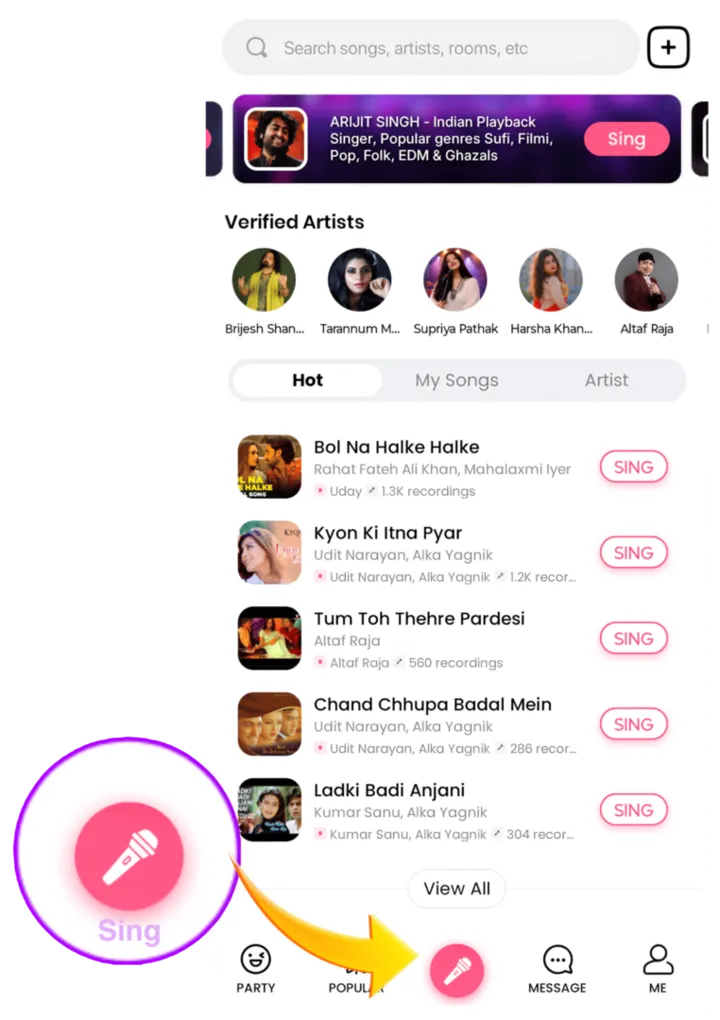
Getting started with singing and recording is easy, whether you're new or have used the features before. The Sing page offers a vast library of songs where you can find almost any track you like, with plenty of singing modes to choose from 🥰
Try Solo Mode 🎤
- Search the song you like and tap "Sing", or find the "Sing" button on the song's details page.
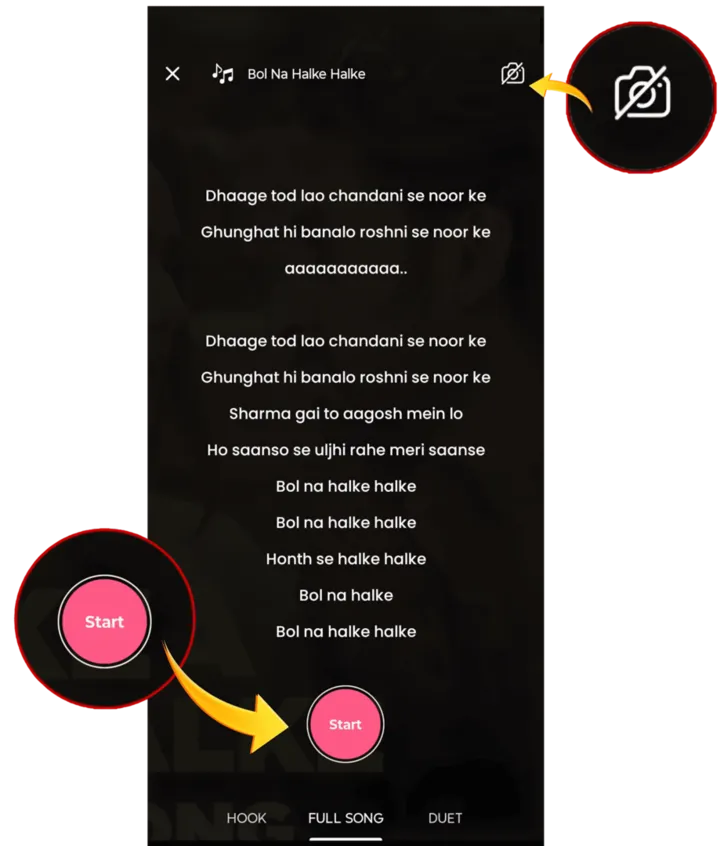
- "FULL SONG" or "HOOK" lets you sing solo; "Duet" lets you start or join a duet. (Note: "HOOK" is only available on Android.)
- Switch between audio and video recording from the upper right corner.
- "Tap to start" to sing and tap ✔ to finish.
Creating or Joining a Duet
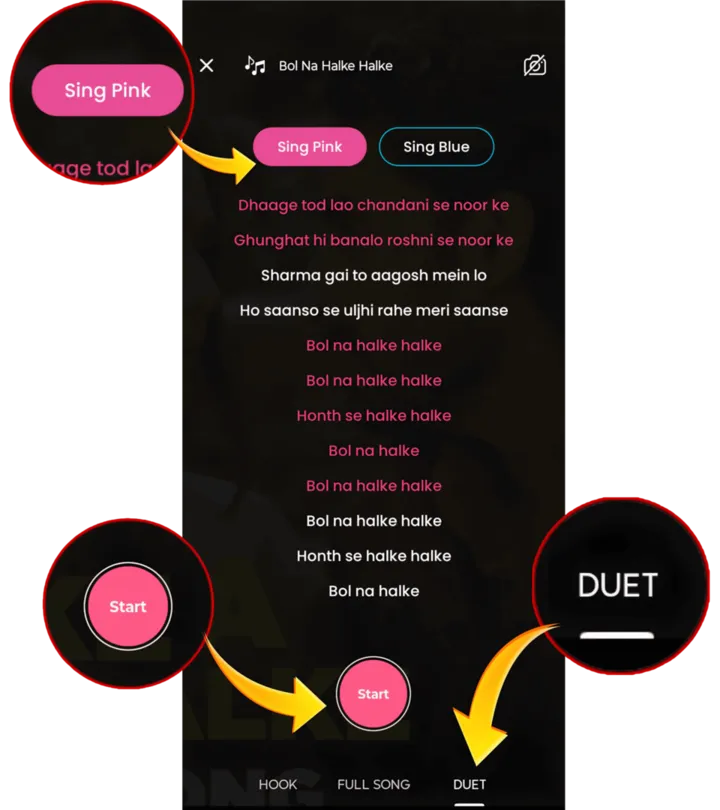
- Create a duet: pick a song → Sing → Duet → Create Duet, then choose the part you want to sing.
- Join a duet (option 1): open the song's details page, pick a card from the list and tap "Join".
- Join a duet (option 2): tap "Sing" and open the "Duet" page to join a duet card.
- Tap "Tap to start" to sing and ✔ to finish.
2
Editing and Enhancing the Recording
Enhance your recording experience by fine-tuning settings during and after your performance. Here's how:
During Recording
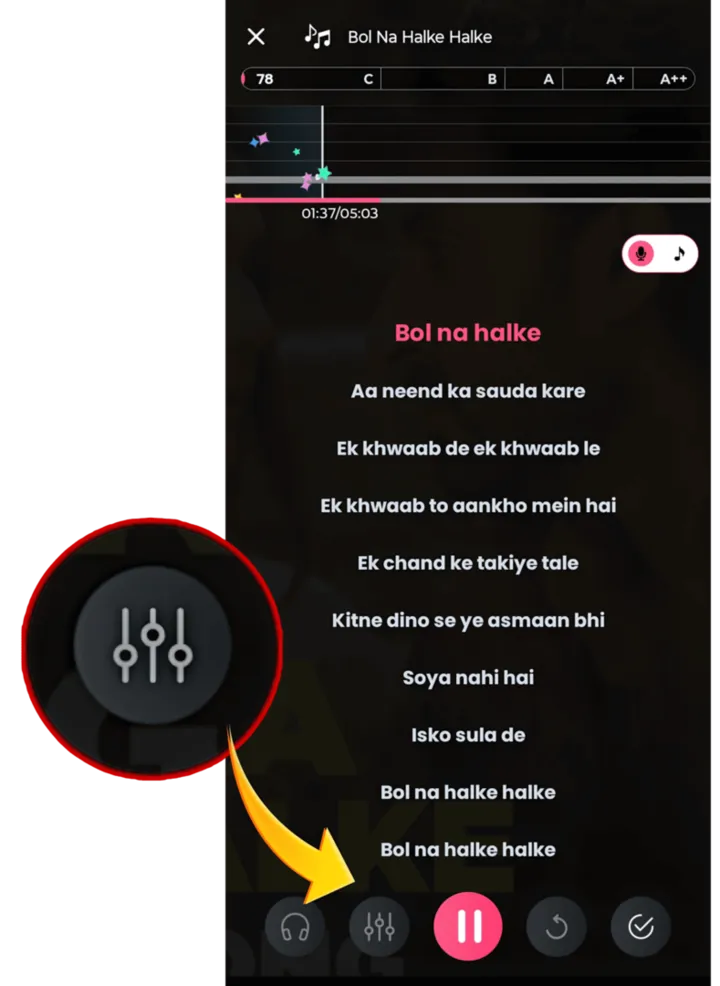
- Tap the Adjust icon while recording.
- Adjust music volume, pitch, and effect to suit your preferences.
After Recording
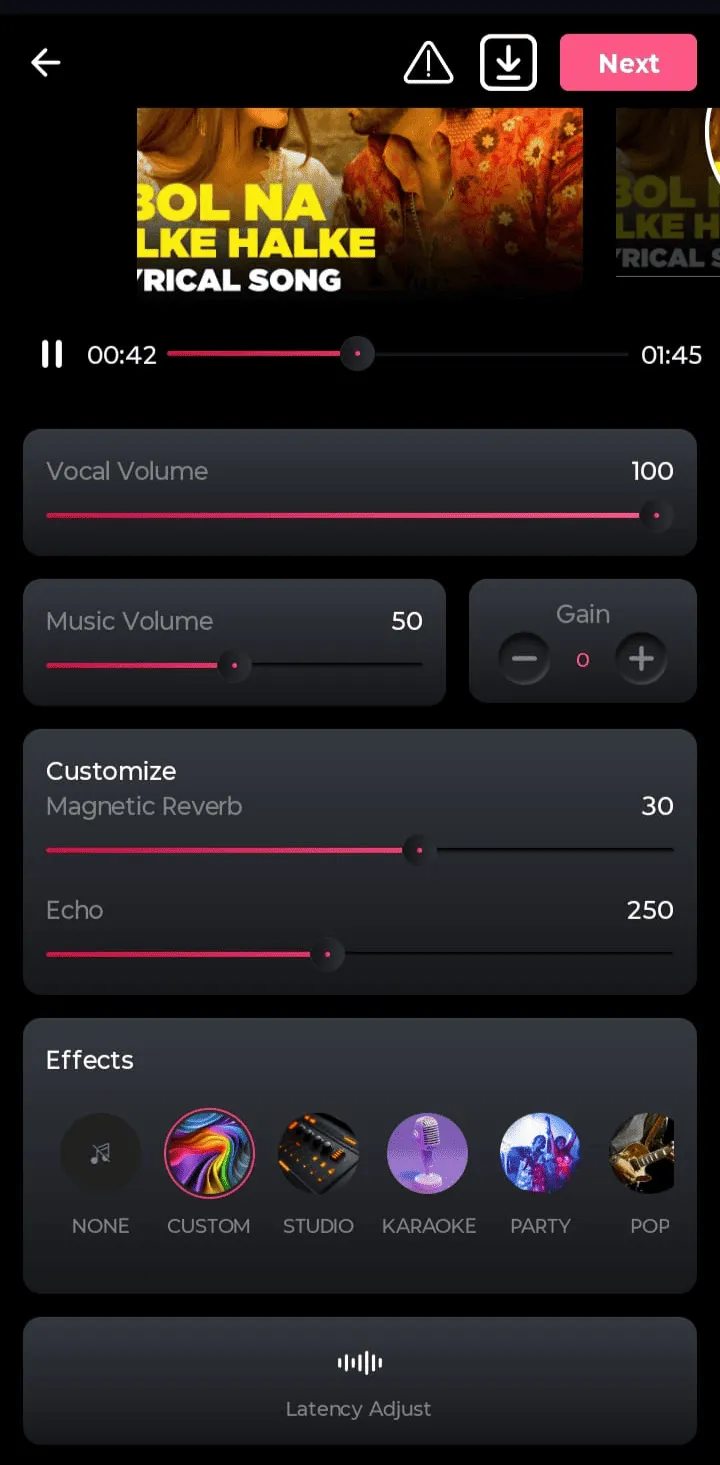
- Go to the Preview page after finishing the song.
- Adjust latency, reduce noise, and create clips. Modify effects, music, and voice volumes as needed.
- For voice-only recordings, select an appropriate lyrics template.
3
Posting or Saving a Recording
Here's how you can share your performance with the world or save it to refine later:
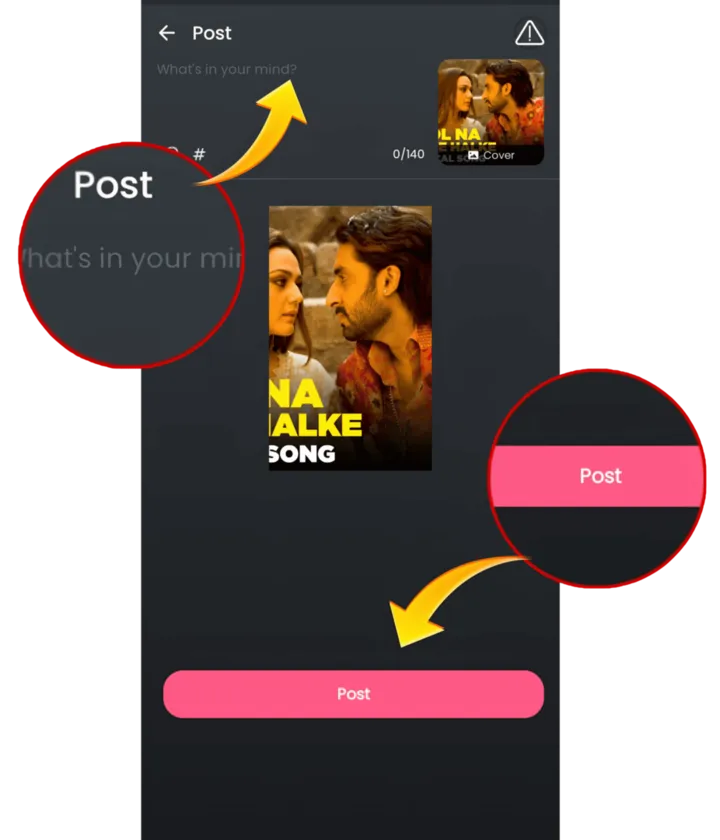
- On the Preview page, tap "Next", write something in "What's on your mind?" and tap Post.
- You can also save your recording as a draft and revisit it later.
- Note: Drafts will be deleted if the app is uninstalled.