Creating and Joining a Room
Party Rooms are virtual spaces where you can host or join group sessions to share stories, enjoy music, and socialize with others. Here's how you can create your own room or join an existing one.
Creating a Party Room
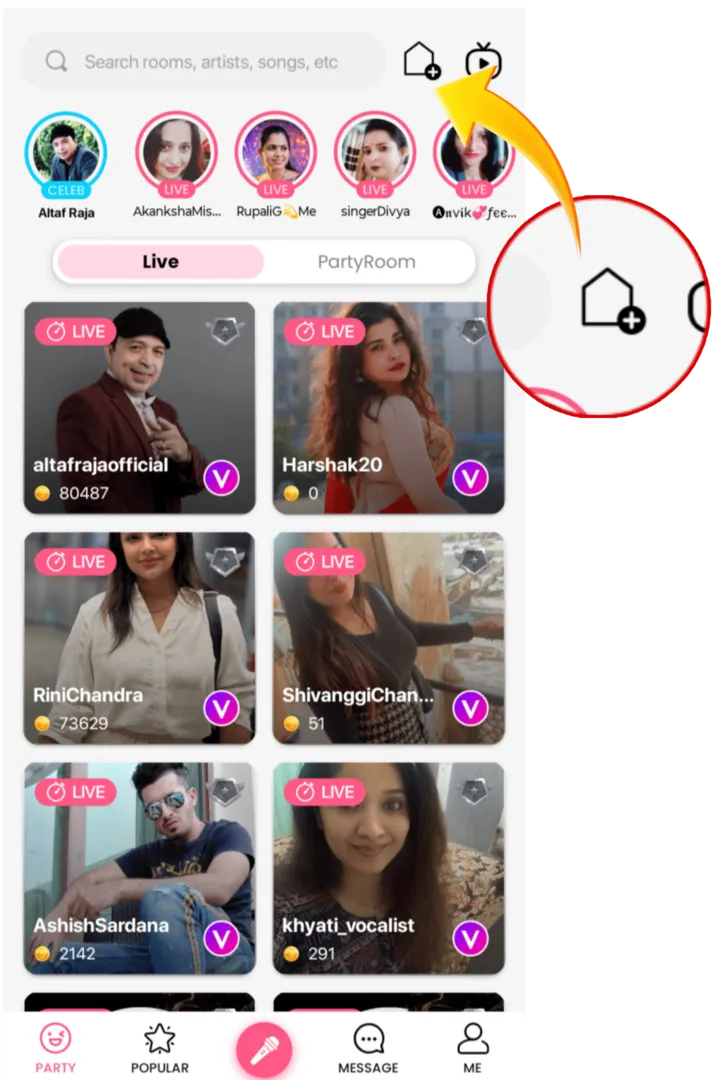
- Go to the Party page on the homepage.
- Tap the My Rooms tab and then the Create Room button.
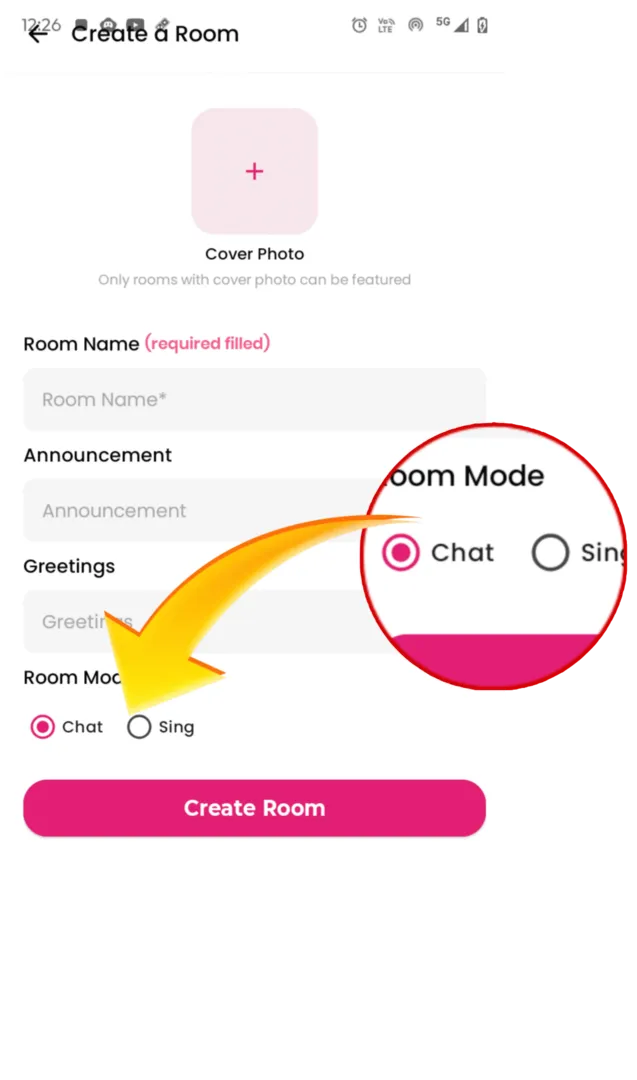
- Enter a room name, add a photo, and choose room tags that describe your room.
- Tap the Create button to finish setup.
Joining a Party Room
- Browse the rooms on the Party page.
- Tap on a room that interests you and join the fun with other members.
Discovering More Fun in Rooms
Now that you know how to join or create a room, let's explore the different modes and features available in Party Rooms.
Discovering Room Mode Options
Explore various modes in Party Room to host different activities — whether it's idol singing, chatting, or a simply silent time.
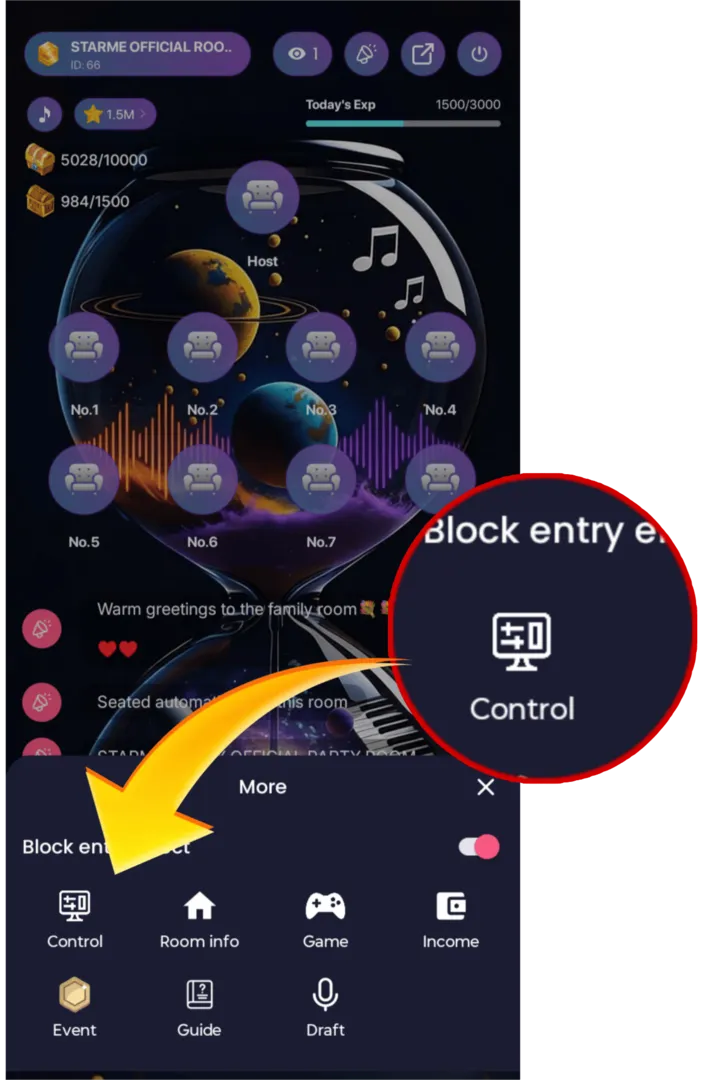
- Go to the Room page, tap on My Room to enter.
- Click on the three-line icon in the bottom right corner, beside the gift icon.
- Now go to the Control Section. From there you can fully edit your Party Room. Tap on Room Mode to choose between Sing Mode or Chat Mode.
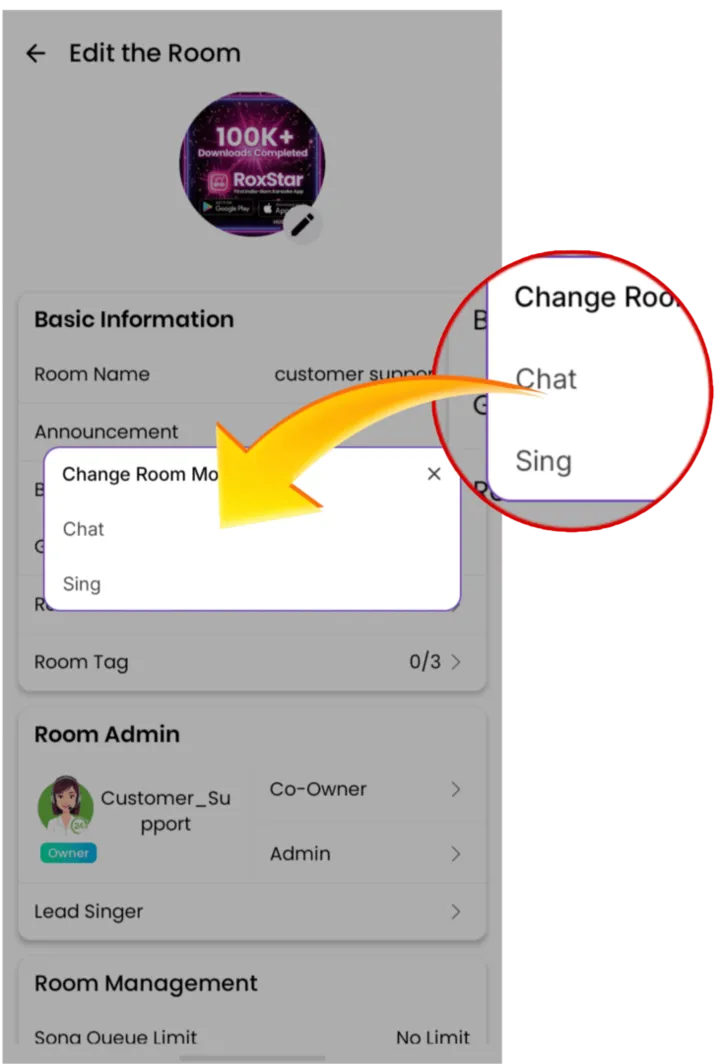
Room Details and EXP
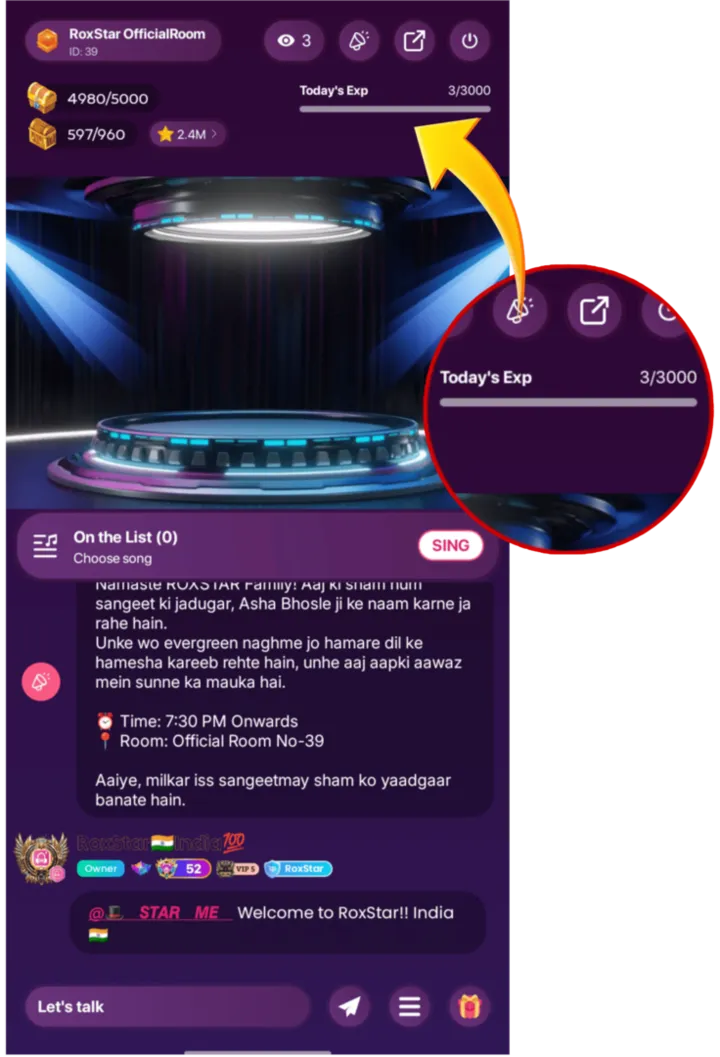
- Go to the Room page, and click on the Today's EXP bar shown on the right corner of your room.
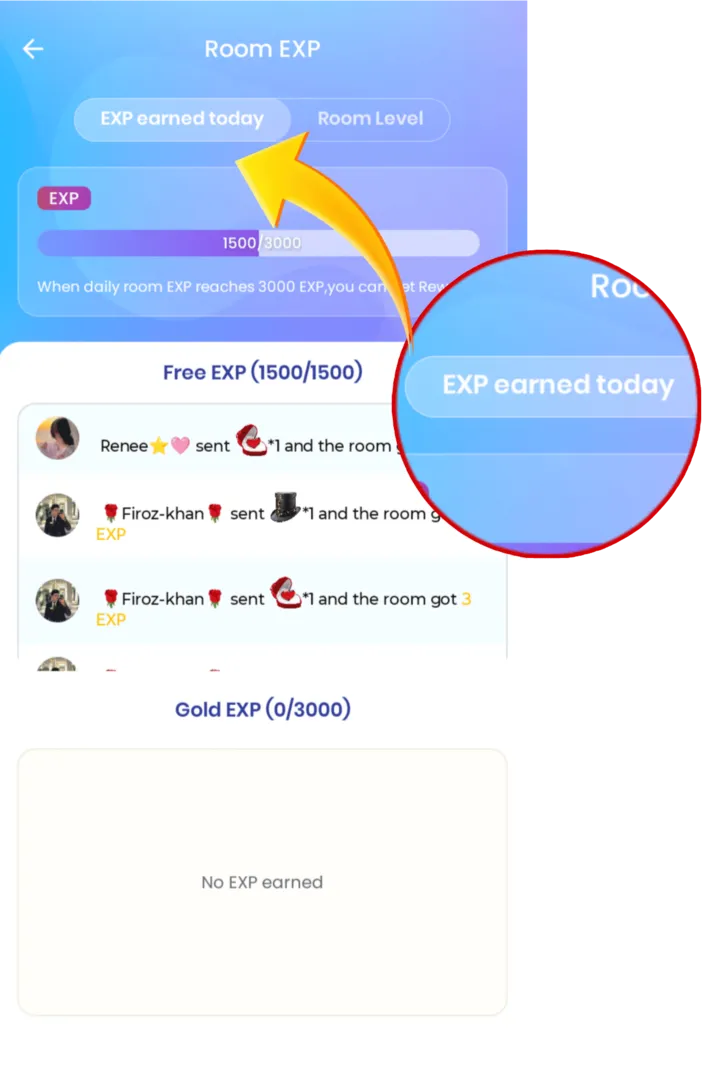
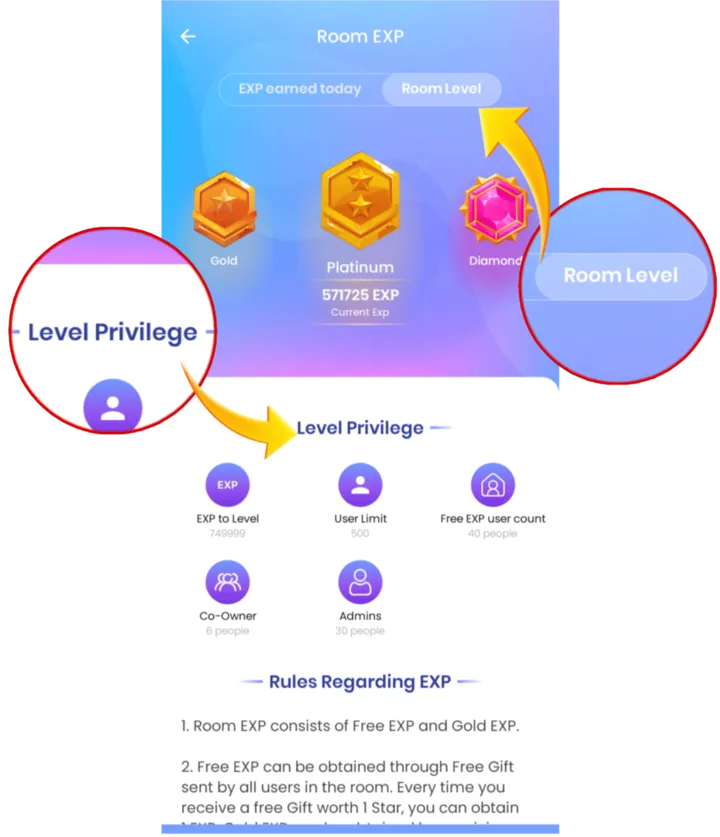
- Here you'll see details like Room level, Room EXP, Today's EXP, and Privileges.
Managing a Party Room
- Tap the room name in the upper left to access the management option.
- Edit the room's basic information, assign room admins, and manage various settings to keep your room organized.
Monetizing in the Party Room
As the host or an active participant, engaging your audience and creating an entertaining room can lead to greater interactions and rewards.
Engaging Viewers
Interact with your audience to encourage gifts.
Receiving Gifts
Coin gifts from viewers will be converted into diamonds. When you accumulate enough diamonds, you can exchange them for cash. Tap the room name in the upper left corner to view your room income.
Interacting in the Party Room
Make your party room more lively and enjoyable by using various features to interact with others, whether you are in a chat or sing room. Here's how you can get involved:
- Tap Sing or take a seat to participate in the room.
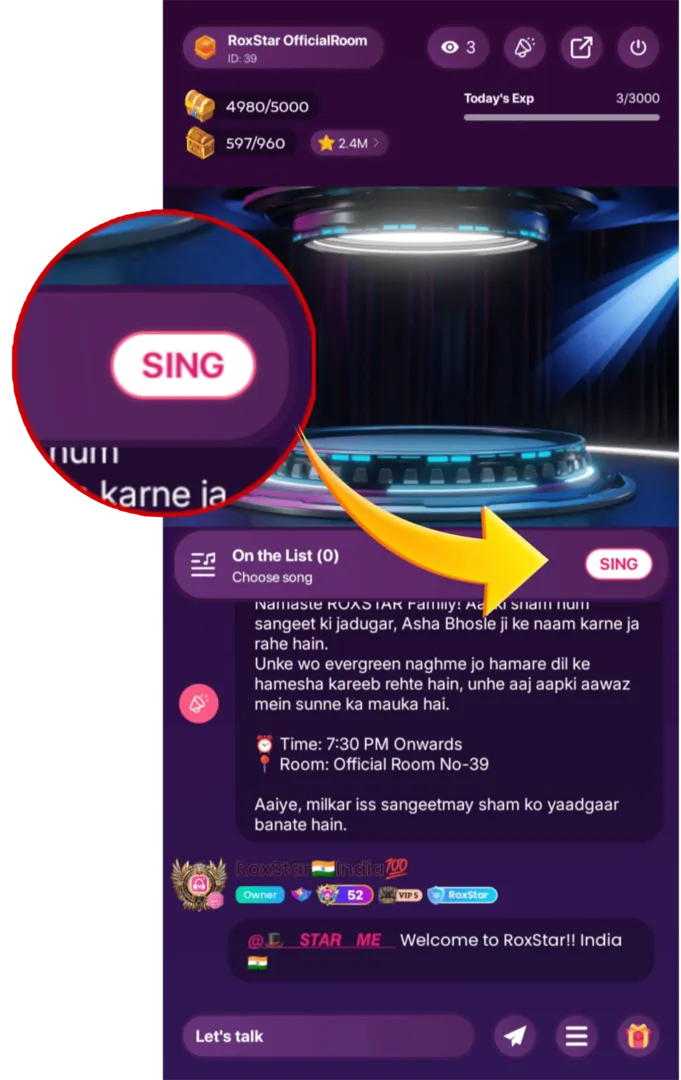
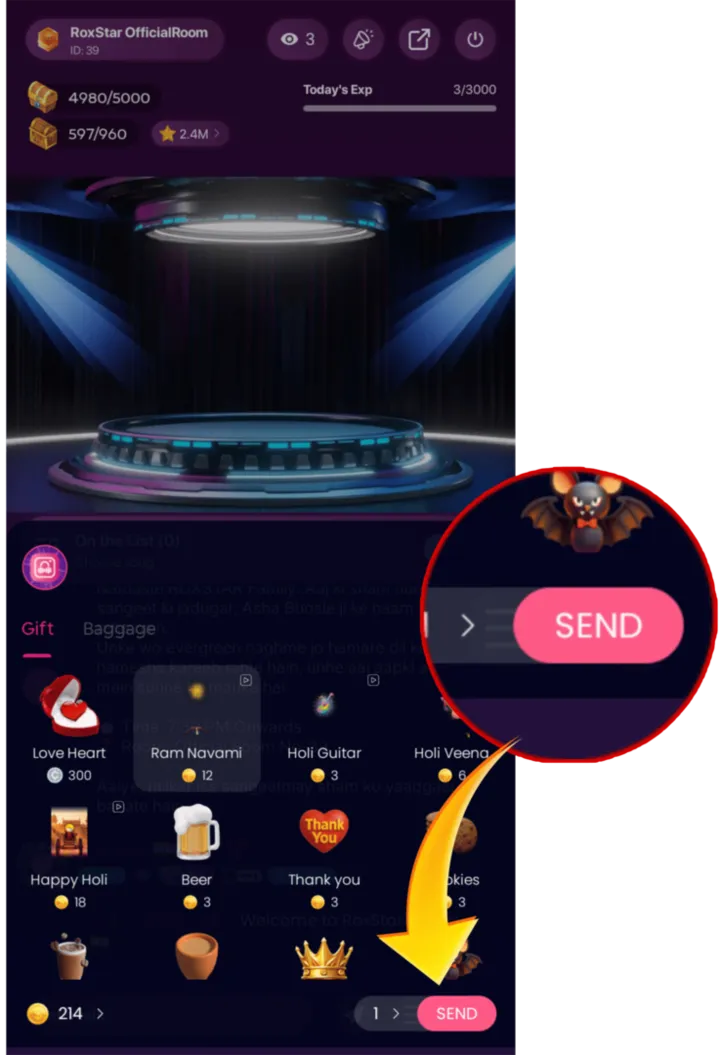
- Send comments and gifts, or play different games via the tool panel at the bottom.